Intelligence-based PC Tune-up: exclusively for iolo subscribers
One-size-fits-all approach
used by other “utility” and “cleaner” programs can’t
adapt.
Tune-up Definitions give System Mechanic the expert knowledge to precision-tune
your PC using the latest up-to-date scientific research released from
iolo Labs.
How Tune-up Definitions™ work
1.
iolo Labs collects critical performance information from millions of computers globally.
2.
iolo Labs analyzes data for trends affecting performance, compatibility, optimization,
and repair techniques - released as Tune-up Definitions.
3.
An active System Mechanic Service Plan gives you access to the constant flow of
Tune-up Definition updates -- automatically delivered to your desktop on a regular
basis.
Tune-up Definitions teach System Mechanic about the latest PC performance issues
as they manifest and evolve in real time, keeping the product agile, safe, and powerful.
Eliminate the top 5 PC performance drains with System Mechanic
Have you noticed that the longer you've had your computer, the slower it's gotten?
iolo researchers have identified the top 5 causes of PC slowdowns and bottlenecks:
- Fragmented hard drives
- Cluttered startup
- Unoptimized internet settings
- Fragmented and bloated registry
- Fragmented memory
With System Mechanic, you can eliminate these performance drains and adapt PC settings
for optimal performance. Your programs will launch quicker, work faster, and perform
with greater reliability.
POWER TOOL [Toolbox > All-in-one Tools > PC Accelerator]
"PC Accelerator" includes all five of the most critical fixes: defragmenting hard
drives and memory, defragmenting and compacting the registry, and optimizing your
Windows startup and internet settings (each repair is described in detail below).
The simple, 2-step wizard provides recommendations based on your PC's condition
and then runs all the repairs and optimizations at once.
INDIVIDUAL TOOLS [Toolbox > Individual Tools > Increase Performance]
To run the specific fixes that you want, you can choose from the individual repairs
in the "Increase Performance" category:
- DEFRAGMENT HARD DRIVES
Defragmenting drives reorganizes scattered data so that file components are stored
closer to each other - the movement of mechanical parts is minimized and Windows
can more quickly access and open files. The process boosts drive speed, prevents
data corruption, and extends the life of drives.

- OPTIMIZE WINDOWS STARTUP
Various programs and services are set to open every time Windows loads. While some

of these programs perform critical functions, many are just needlessly slowing down
the startup process. Eliminating unwanted programs from startup is one of the most
effective ways to speed up a PC. Your computer starts up faster and, by reducing
the number of programs loaded in memory, your computer runs faster, too.
- OPTIMIZE INTERNET SETTINGS
When Windows is installed, the default settings are not necessarily optimized for
your specific Internet connection - this can prevent you from reaching maximum download
and upload speeds. System Mechanic's NetBooster® technology enables the transfer
of more data over your existing connection, resulting in faster and more reliable
access. Many people experience increases in speed of up to 300% after running these
optimizations.
- DEFRAGMENT AND COMPACT THE REGISTRY
As you make system changes and your PC's registry grows, the registry becomes fragmented
and overly large. Regularly defragmenting the registry restructures data so that
Windows can access what it needs faster, while compacting eliminates the bloated
and unused space in the registry. The processes work together to speed program access,
improve overall system efficiency, and free up vital memory.
- DEFRAGMENT MEMORY
Defragmenting memory reclaims and frees up valuable memory, which can have a dramatic
impact on speed. Defragmenting the memory can also improve the stability of your
computer as low memory is a common cause of computer crashes and lockups.
Boost speed with System Mechanic
Did you know that one of the major causes of PC slowdowns are programs automatically
starting every time you turn on your computer?
While certain programs (such as antivirus protection) should automatically start
when your computer is turned on, many programs are just unnecessarily slowing down
your PC. Some may be programs that you're not using, software that you didn't even
know was installed, or dangerous files running without your knowledge - all loading
every time you start your computer.
The System Mechanic Solution
Clearing out unnecessary startup settings removes this bottleneck and is one of
the most effective ways to speed up your PC. Your computer starts up faster and,
by reducing the number of programs loaded in memory, your computer runs faster,
too.
System Mechanic offers three tools to help you manage the startup processing on
your computer:
- The Optimize Windows Startup tool uses a wizard to guide you through removing
unneeded startup settings. You can choose to completely automate the removal of
items from startup, or you can view a list of potentially unneeded startup items
and choose which ones you want to remove.
[TO ACCESS: Toolbox> Individual Tools > Increase Performance > Optimize
Windows Startup]
- For advanced users, the Configure Windows Startup tool lists all the items currently
configured to start when Windows loads. You can enable, disable, or delete startup
items; view detailed file descriptions and properties; create startup profiles;
and more.
[TO ACCESS: Toolbox > Individual Tools > Manage System Configuration
> Configure Windows Startup]
- For continual upkeep, we recommend that all users enable ActiveCare to automatically
remove unneeded items from startup as soon as they're detected.
[TO ACCESS: ActiveCare > Automated Tasks > Automatically optimize startup
configuration]
ActiveCare - Automatically Fix and Maintain Your PC
What ActiveCare Is
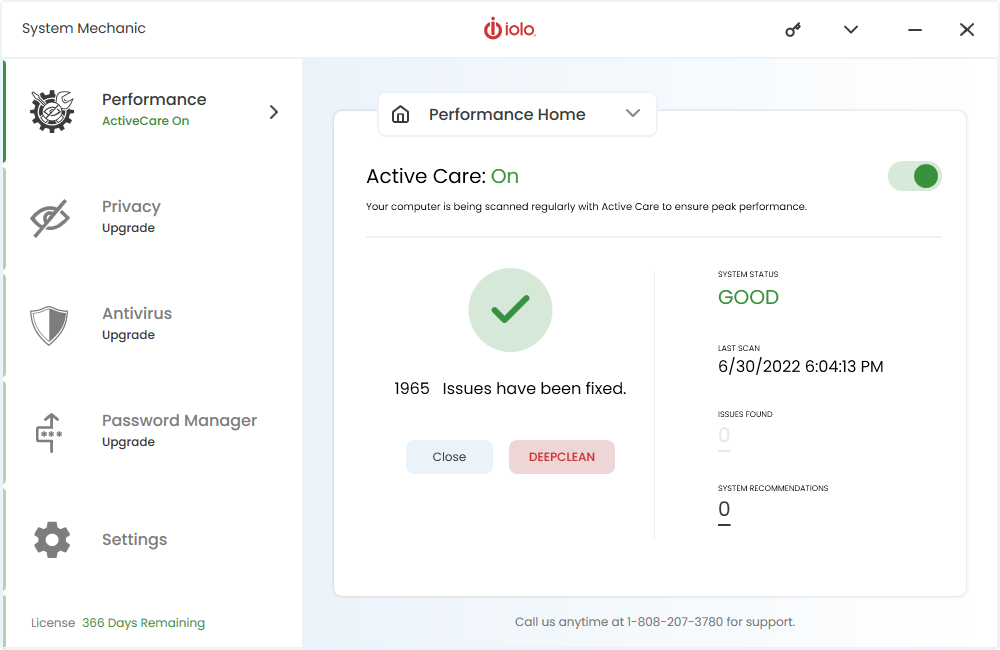
iolo's patent-pending ActiveCare™ technology maintains PC health by monitoring
performance behind-the-scenes and then automatically running the repairs the computer
needs. ActiveCare is found in System Mechanic and System Mechanic Professional.
Not a scheduler, ActiveCare is a key distinguisher in the PC utility market; no
other product offers this advanced level of active and intelligent maintenance.
And new to version 8, ActiveCare 2.0 uses proprietary ZeroRAM™ technology
so processing takes up even less system resources.
How ActiveCare Works
While your computer is on but not in use, ActiveCare checks the PC's condition and
compares it to established performance standards. If a problem is detected, ActiveCare
then automatically runs the appropriate repair. By only running the fixes that are
needed and only running when your computer is idle, ActiveCare silently monitors
and repairs your computer without ever interrupting your work.
How You Use ActiveCare
You control the automated actions that ActiveCare runs by making selections from
the Automated Tasks pane.
- Under ActiveCare on the navigation bar, click Automated Tasks.
- Click the toggle button next to a task to Enable or Disable the automated repair.
With ActiveCare, you can automatically:
- Clean and repair the registry by removing obsolete and invalid references
- Automatically defragment and compact the registry on an as-needed basis
- Streamline Windows startup by eliminating unneeded startup commands
- Clean out unneeded files when system clutter becomes excessive
- Adapt internet settings to boost internet speed and stability
- Repair security vulnerabilities in operating systems and browsers
- Detect and repair hard drive errors
- Defragment hard drives when drives become highly fragmented
- Defragment the system's memory when memory is low
- Detect and repair broken shortcuts
- Automatically back up the registry on a recurrent basis
Additional configurations allow you to fully customize when ActiveCare runs - you
can control ActiveCare processing based on scheduled times, battery power usage,
CPU usage, full screen mode for gaming/videos and more; to access these settings,
click Configure from the Automated Tasks pane and then click
Edit Advanced Options.
Fix PC errors and corruption with System Mechanic
Over time and with regular usage, a computer can slowly degrade and become corrupted
and unstable. Use System Mechanic's PC repair tools to diagnose and fix hundreds
of problems with hard drives, system components, software, and hardware.
POWER TOOL [Toolbox > All-in-one Tools > PC Repair]
- The PC Repair Power Tool is one solution that
fixes the most common causes of crashes and system failures.
INDIVIDUAL TOOLS [Toolbox > Individual Tools > Repair Problems]
- Repair Registry Problems.
Over time, the Windows registry can become corrupt, leading to degraded performance
and system crashes. Removing invalid and obsolete data references cleans and streamlines
the registry.
- Repair Broken Shortcuts.
Broken shortcuts occur when the target files have been moved or deleted. Repairing
these shortcuts speeds processing and eliminates unexpected errors.
- Repair Hard Drive Problems.
A damaged hard drive can prevent files from being accessed or saved and can cause
system crashes. Repairing hard drive errors protects your data and improves overall
PC stability.
- Repair an Unbootable
PC.
Use this tool to create an emergency "Drive Medic" CD to use if your computer
ever suffers severe damage, such as the operating system failing to load.
- Troubleshoot System Problems.
If your PC has become unstable or unusable, it can be hard to know where to start
with repairs. Use this feature to read recommended solutions and access the tools
(both System Mechanic and Windows tools) that can help you regain stability.
ACTIVECARE [ActiveCare > Automated Tasks]
ActiveCare monitors performance behind-the-scenes and then automatically runs the
repairs your PC needs. Automated repair options include:
- Automatically repair registry problems
- Automatically repair hard drive errors
Frequent questions
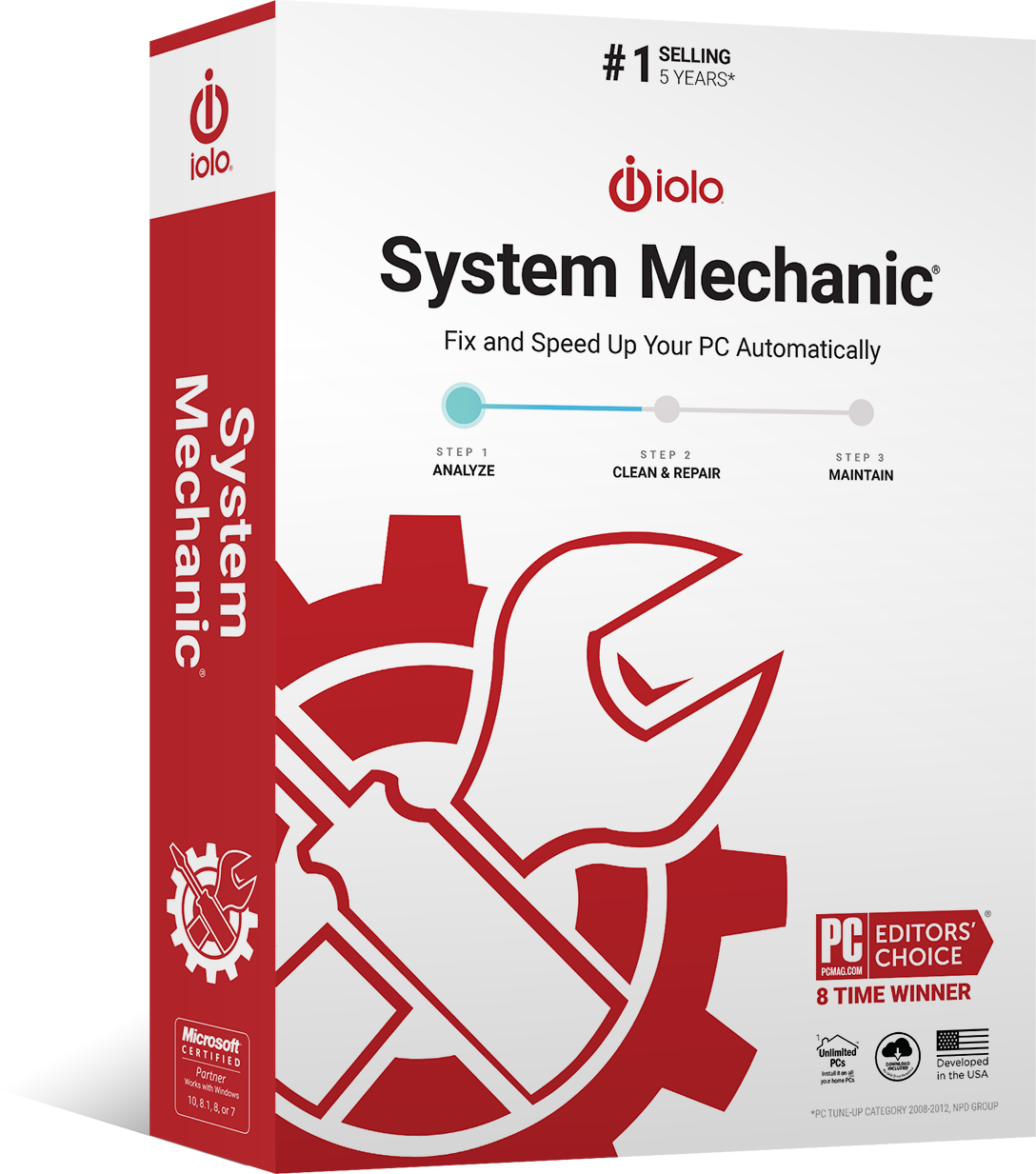
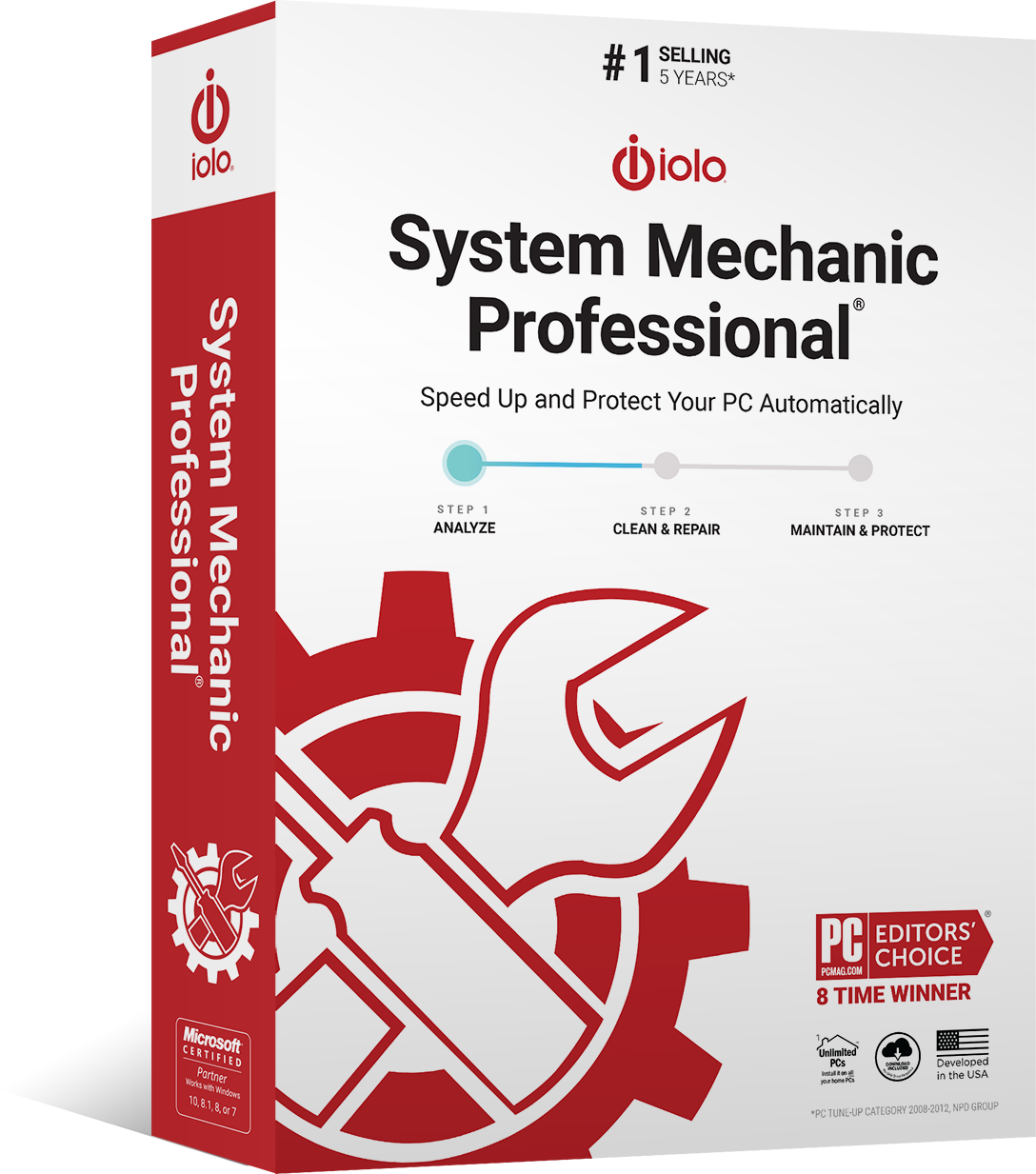
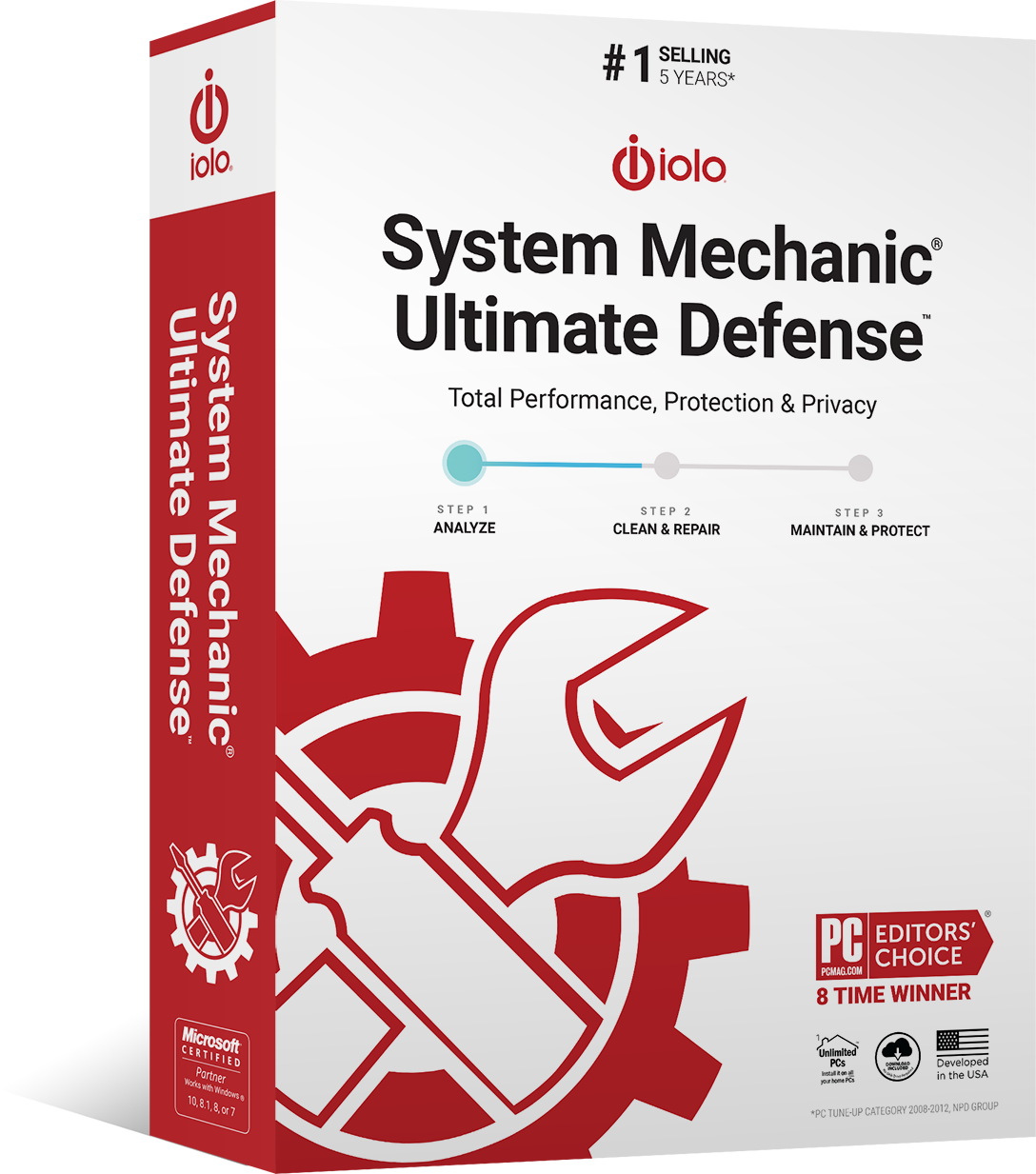
Q. What is the difference between System Mechanic® and System Mechanic
Pro®?
A. System Mechanic Professional includes all the tune-up functionality of
System Mechanic plus 4 more award-winning iolo products, all for one low price.
System Mechanic Pro gives you System Mechanic, plus it includes iolo AntiVirus,
iolo Anti Spyware, DriveScrubber® (with additional advanced data removal
functions), and Search and Recover™ (which recovers previously lost or deleted
data).
Compare iolo products
Q. On how many PCs can I use System Mechanic?
A. The license allows you to install System Mechanic on up to 3 PCs.
Q. What is iolo's support policy?
A. iolo offers unlimited and free technical support.
In an age where paid or time-limited product support is the norm, we break the mold
by offering unlimited telephone and email technical support, all at no cost.
Q. What operating systems does System Mechanic work with?
A. Windows 7, Windows Vista, Windows XP, and Windows 2003 Server.
System Mechanic is designed to work on Microsoft Windows Vista, XP, and 2003 Server
operating systems and has been tested to work on the latest releases of Windows
7. System Mechanic is both 64-bit and 32-bit compatible.
Q. Is a free trial available?
A. Yes, System Mechanic offers fully-functional trial versions
here
System Mechanic trial versions allow you to try out all the features for a limited
time. After your purchase, we'll instantly email an Activation Key to you, transforming
your trial version into fully licensed software.
Go to the free trial download page
Q. What is the advantage of the System Mechanic service plan?
A. The service plan provides customers with free ongoing product enhancements
(including major version upgrades) and the latest Tune-up Definitions™ from
iolo Labs.
Learn more about these
advantages
Q. How is System Mechanic delivered after I purchase?
A. You can choose instant download delivery, a shipped box with CD, or both.
You will receive complete download and activation instructions by email instantly
after you purchase from the iolo web site. Additionally, you may add a physical
box with a CD to your order so you always have a backup on hand.
Q. Can I get a discount on multiple years of System Mechanic service to save
money?
A. Yes, you will have the option to upgrade to a discounted multiple year
service during purchase.
Q. Can iolo automatically renew my System Mechanic service so I don't have
to?
A. Yes, you will have the option to select an auto-renewing service during
purchase confirmation.
This is a convenient service provided to our customers who value uninterrupted peak
performance without having to remember to add time themselves.
Q. Can I purchase a license for more than three PCs in my business or organization?
A. Yes, iolo also offers System Mechanic for 10, 25, 50, 75, 100 or more PCs
as well.
Learn more about System Mechanic Business
Q. What is iolo's return policy?
A. iolo offers a money-back guarantee.
Read our return policy
More questions?
The Customer Care site at www.iolo.com/customercare
is a one-stop resource for all your product questions:
- A searchable Knowledge Base with product tutorials and frequently asked questions.
- Online help systems with detailed instructions on all product features.
- Online contact forms to send specific questions directly to Customer Care.
- Access to all iolo product services, including downloads and subscription renewals.