Changing PowerSense Modes Manually
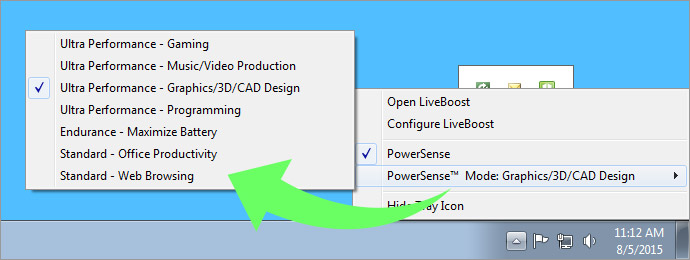
PowerSense modes trigger whenever you launch a trigger app such as a video editing program or gaming client. Occasionally you may wish to manually switch PowerSense modes without relying on a specific program to trigger the desired mode.
To manually switch PowerSense modes right from your desktop:
- Click the PowerSense system tray icon. If you do not see the icon, learn how to enable it by clicking here.
- A checkmark indicates PowerSense is properly enabled.
- Run your cursor over the current built-in mode to see the full list of available modes
- Select one of seven different built-in modes. The system tray icon will change color accordingly.
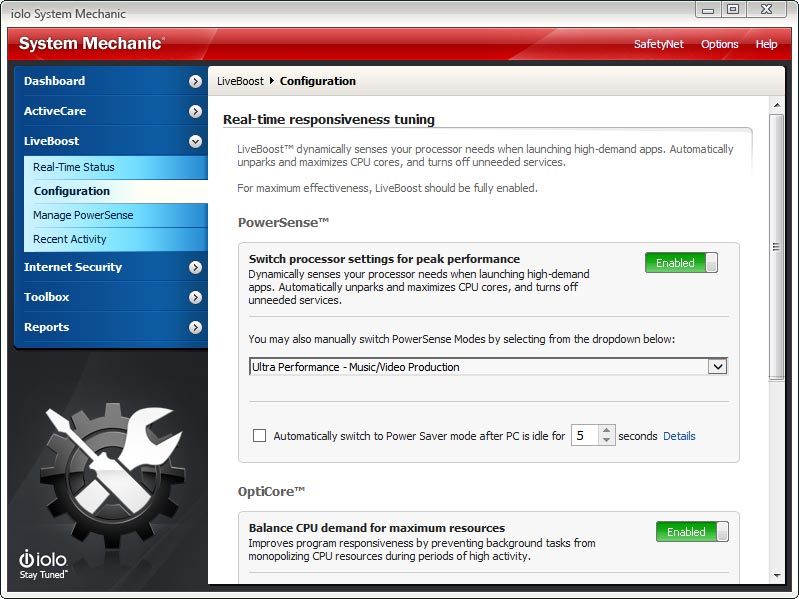
To manually switch PowerSense modes from within System Mechanic:
System Mechanic Special Offer
Smart recommendations deliver personalized tips to keep your PC optimized and protected. Speed up, secure, and simplify your digital life with System Mechanic©.
Free Download Now Faster processor & internet speed8x PC Mag winner
- Click LiveBoost and choose Configuration.
- Be sure PowerSense is set to Enabled.
- Click the down arrow in the PowerSense dropdown menu.
- Select one of seven different built-in modes. If enabled, the system tray icon will change color accordingly.